
How to add a logo to an STL file
A logo, a sign or a photo, cut into the surface of your model, flat or curved. In your browser, free, and neither the model nor the picture leaves your device.
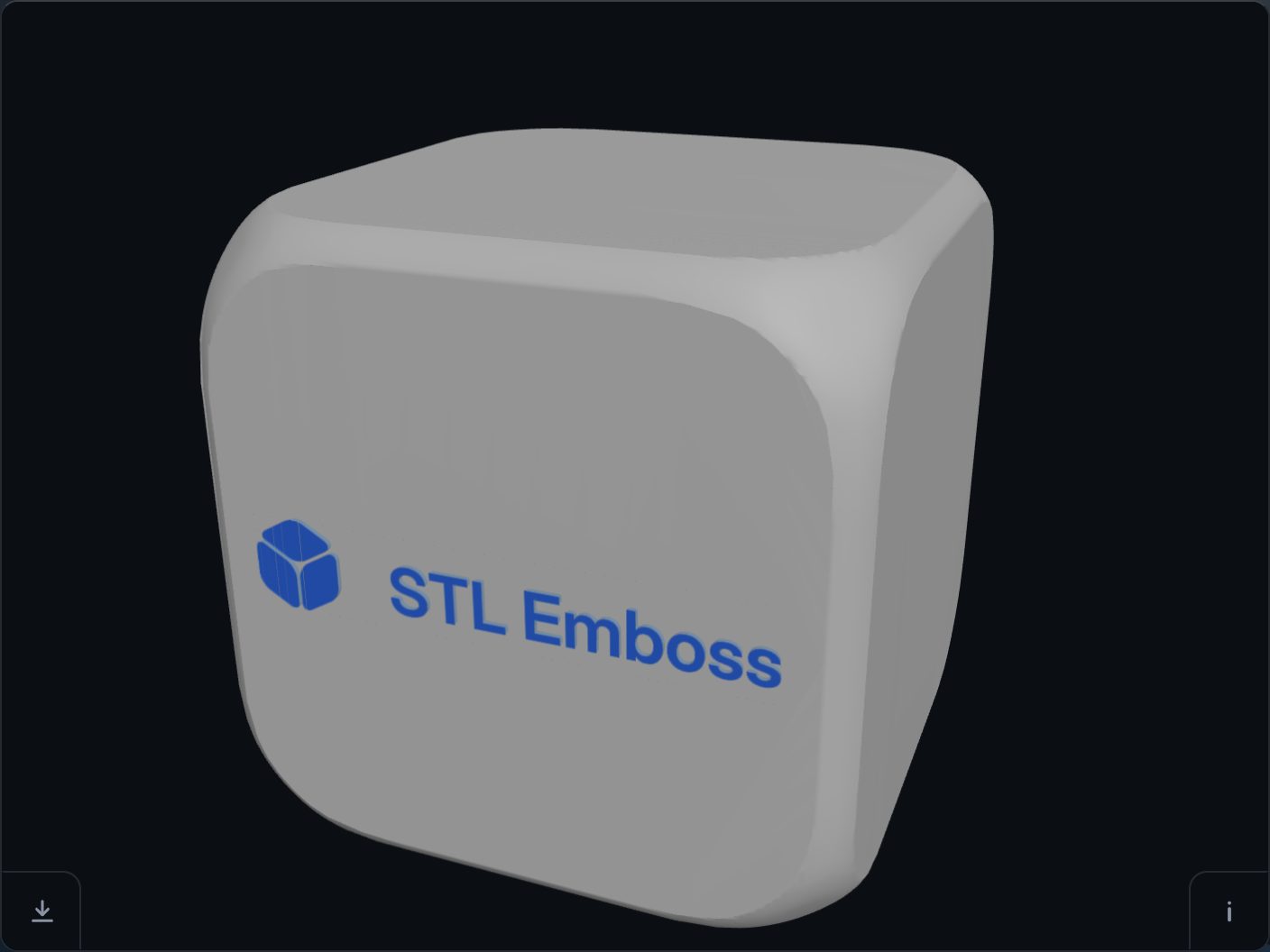
-
Open your model
Press “Choose a file”, or drop your STL onto the page.
-
Add the picture
Press “+ Image” and choose a PNG, a JPG, an SVG or any other picture your browser can open, or drop the picture onto the page. The page finds the shapes in it and the mark places itself on the model. Drag it where you want it, or press the spot on the model where it should go, and turn and size it with the same four handles as text.
A logo exported at a few hundred pixels across is plenty. An iPhone's HEIC opens only in Safari: elsewhere, export it as a JPG or a PNG first.
-
Correct the shapes, if it needs it
Open the picture's tile on the panel and the editor shows what was picked. Tap a zone adds or drops a whole area, Pencil and Eraser fix an edge by hand, and Invert swaps which part is cut. Use this picture puts it back on the model.
-
Cut and download
Press the tick ✓ (or Return) and the mark is carved into the mesh. The download button saves a new STL. Your original file is never changed.
A flat logo or a shaded relief
The relief handle decides. At 0 % the picture is a flat cut: a flat top, square edges and no shading, which is what a logo usually wants. Move it up and the brightness of the picture becomes height; at 100 % a photograph is cut as a bas-relief. Under any relief the depth handle means the maximum, reached at the brightest part of the picture.
What prints well
A line thinner than your nozzle does not print, however cleanly it was cut, so a logo with hairlines wants to be larger on the model or simpler in the file. If a stroke is too thin to cut at all, the page says so and keeps the editor open: thicken it, drop the speckled zones, or choose another picture.
Open the result in your slicer and look at the thin parts before you print — the page is offered as is.
Try it on your own modelFree, no account, and your file never leaves your device.
Open STL Emboss