
How to add text to an STL file
Add a word to any STL in under a minute — in your browser, free, and the file never leaves your device.
-
Open your model
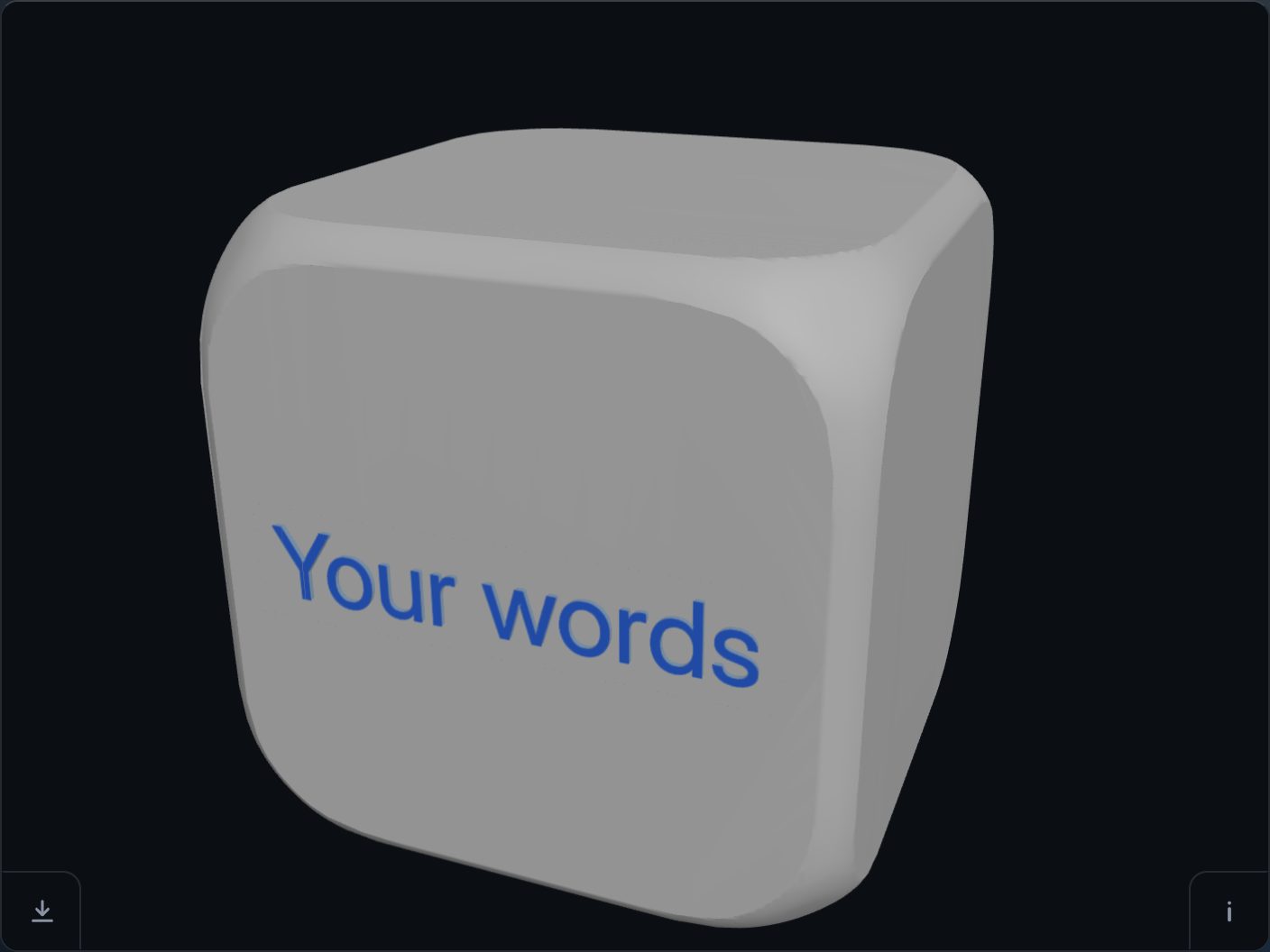
Press “Choose a file”, or drop your STL onto the page. The model opens in the 3D view. No model at hand? The ? card links a learning cube to try it on.
-
Type the words and place them
Press “+ Text” and type. The words land on the surface at a size that fits the face. Drag them where you want them, or press the spot on the model where they should go — on a flat face or a curved one.
Four handles under the words set the rest:
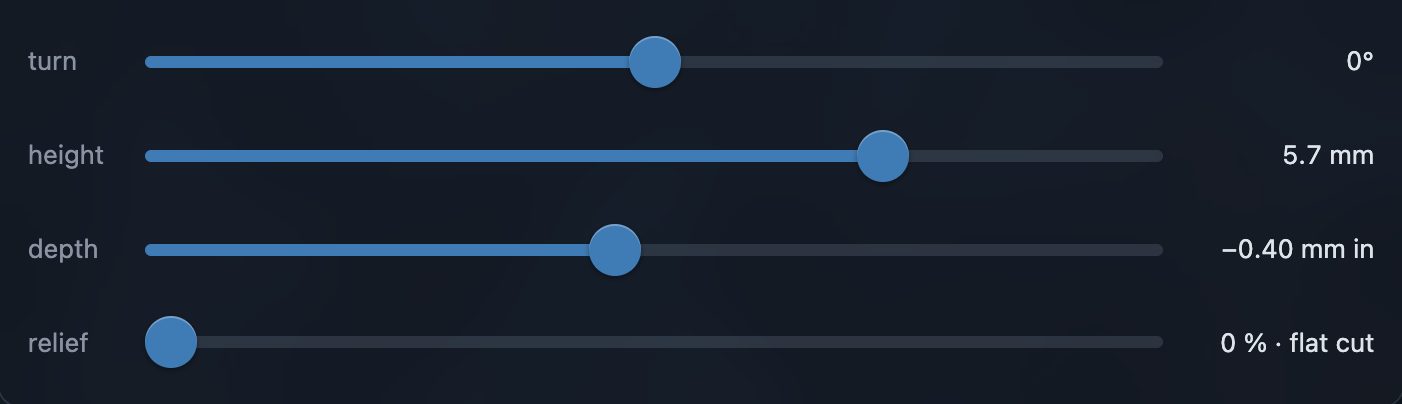
turn, from −180° to 179°; height, from 1 to 100 mm (Delete returns it to the size that fits); depth, from −5 to +5 mm; and relief, from 0 to 100 %, which rounds the mark's square edge.
The default depth is −0.4 mm: the letters are sunk two layers deep at a 0.2 mm layer height — enough to read, nothing to knock off. Move the depth handle past zero and the letters are raised out of the surface instead.
From the keyboard, the arrow keys move the mark 1 mm (5 mm with Shift) and the square bracket keys, [ and ], turn it 5°. Every step is spoken by a screen reader.
-
Cut and download
Press the tick ✓ (or Return) and the mark is carved into the mesh. The download button then saves a new STL, ready to slice and print. Your original file is never changed, and nothing is uploaded: the cut happens on your device.
Open the result in your slicer and check it before you print — the page is offered as is.
Try it on your own modelFree, no account, and your file never leaves your device.
Open STL Emboss