
Export text or a logo as an SVG or a flat STL
A mark can leave the page as its own file: an SVG for a laser cutter or a vinyl plotter, or a flat STL of the letters alone.
-
Add the mark
Open a model and press “+ Text” or “+ Image”. No model at hand? The learning cube in the ? card will do: the file you are after is the mark, not the model.
-
Open the design editor
Open the mark's tile on the panel. If you changed the design, press Use this design and open the tile again: the files are of the design that is on the model.
-
Press the download button
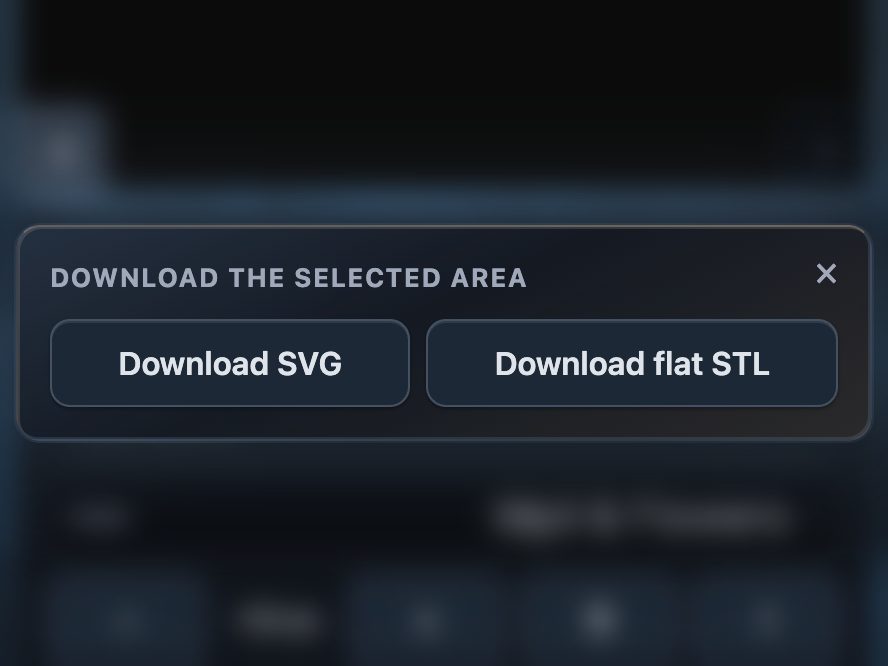
While the editor is open, the download button opens a popup, “Download the selected area”, with two files: Download SVG and Download flat STL. With the relief handle above 0 %, the second reads Download relief STL.
What you get
The SVG is the shape of the mark, flat and unturned, whatever it lies on. On a curved surface with “Along the horizontal” ticked, it is the fan, the shape a flat label would need to be.
The flat STL is the mark alone, standing on z = 0, as tall as your depth, whichever way that depth points. The relief STL carries the rounded top, on a base one 0.2 mm layer thick.
Saving a file changes nothing on the model.
Try it on your own modelFree, no account, and your file never leaves your device.
Open STL Emboss