
How to choose a font for text on an STL
40 font families under an open licence, and your own font file if you have one. It is read in your browser and never uploaded.
Open the font sheet
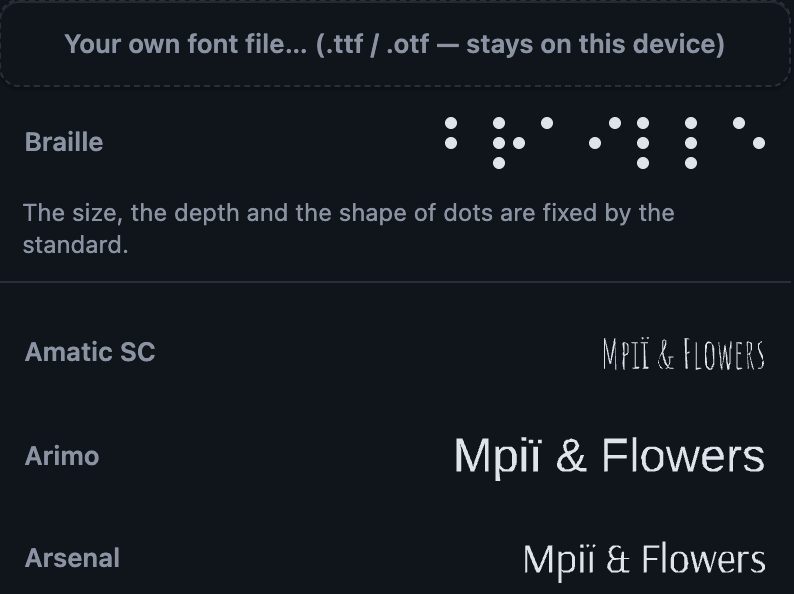
Press “+ Text” and type your words, then open the text's tile on the panel: that is the door to the design editor. The font button shows the family in use; press it and the sheet opens, A to Z, each row drawn in its own letters. Press a row and the design changes at once. Use this design puts it back on the model.
Every family is under the SIL Open Font License, and its licence file travels with it. Braille stands at the top of the list whenever the design is a single line of words.
Your own font
The first row of the sheet is Your own font file… It opens a .ttf or an .otf from your own computer, and the file stays on this device.
Letters that survive the nozzle
A stroke thinner than your nozzle does not print. The hairlines of a script or a high-contrast serif go first, so for small words start from a plain, bold sans-serif, and make the mark taller before you make it fancier. If a stroke is too thin to cut at all, the page says so with its number instead of cutting it.
The slicer's preview shows what will be lost before any plastic is. Check it before you print — the page is offered as is.
Try it on your own modelFree, no account, and your file never leaves your device.
Open STL Emboss